Somewhere in your Gemini history sits the chat with the perfect two week route through Japan. You know it exists. But the list offers you "Trip planning ideas", "Trip planning options" and "Quick trip question", and only one of them holds the version you actually liked.
So you open all three, skim each one, and five minutes are gone before the real work starts. The same ritual repeats for the salary negotiation notes, the recipe Gemini nailed on the second try, and the debugging session from last month.
Scrolling, a pin or two and the search box are the only browsing tools Gemini hands you, and none of them adds structure. Every conversation lands in one chronological list, and the list only grows.
Folders would fix this, which is presumably what brought you to this page. Here is the honest situation, followed by the fix.
Does Gemini have folders?
No. Gemini folders do not exist as a native feature. There is no way to group conversations by trip, project or topic on gemini.google.com, no nesting, and no drag and drop.
Google has started rolling out Notebooks, a Projects style feature that now appears in the sidebar. Whatever it grows into, it bundles work the way Projects do elsewhere; it is not a folder system for your chat history. That part Gemini still does not have.
What Gemini does give you: a Recent list, chat pinning, Gems and search. Each is useful. And one of them, Gems, gets mistaken for folders so often that the distinction needs its own section.
Pins and Gems vs. Gemini folders: not the same thing
Ask how to organize Gemini and two answers come back: pin the chat, or make a Gem. Both sound like structure at first: a Gem has a name, you can create several, and chats collect underneath them. The resemblance to folders ends there.
A Gem is an assistant. You give it standing instructions, maybe some reference material, and from then on it answers in that role: a writing coach, a coding buddy, a trip planner. Gems change how Gemini talks to you.
A folder is a place. It answers nothing. It simply guarantees that the conversation you filed in March is still findable in October, under the same name, in the same spot. And a pin is a bookmark: it keeps one chat on top without grouping anything. Side by side:
| Capability | Pinned chats | Gems | Gemini folders |
|---|---|---|---|
| Keep a few chats on top | Yes | No | Yes |
| Custom instructions and behavior | No | Yes | No |
| Group chats by topic or client | No | Limited | Yes |
| Subfolders and nesting | No | No | Yes |
| Organize your existing history | Limited | No | Yes |
| One structure across other AIs | No | No | Yes |
Mixing Gems and folders up has a real cost. People build a "Travel" Gem hoping it will keep their travel chats together, and it half works: chats started from that Gem do appear under it. But nothing already in your history moves there, a chat cannot sit under two Gems, and a travel question asked in a normal chat lands outside the system entirely. If you want both, use both: Gems for the talking, folders for the finding.
The 4 features Gemini offers instead of folders
4 native features touch on finding chats again. What each one covers, and where it ends:
The Recent chats list
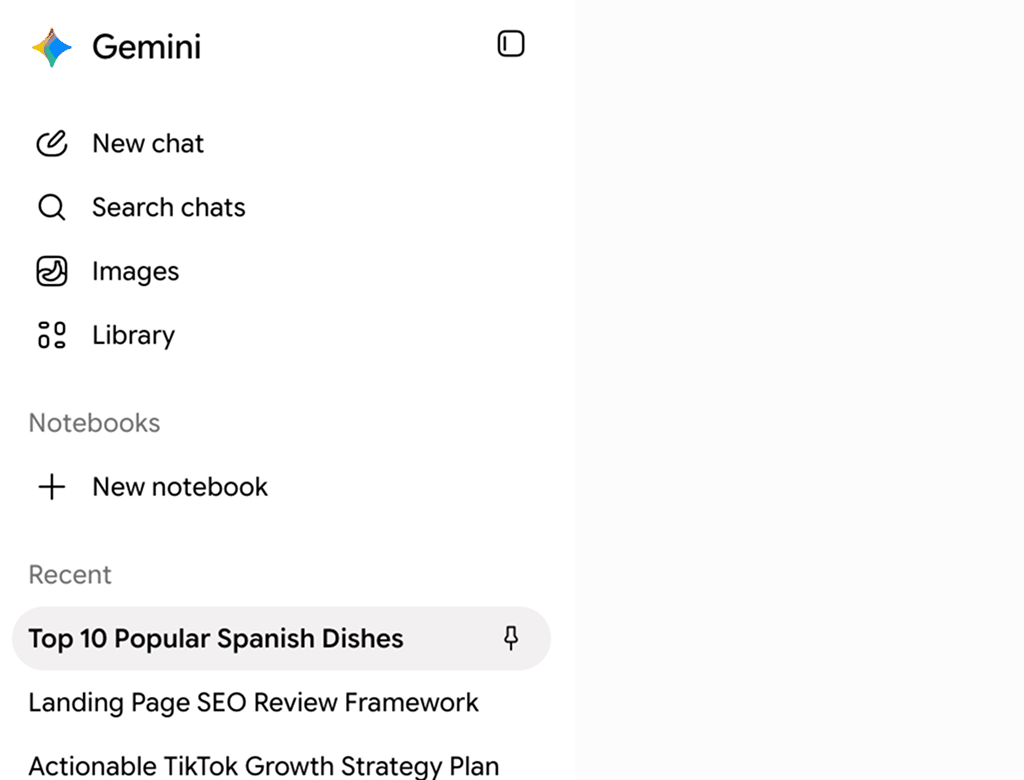
Gemini's sidebar shows your conversations newest first. That is ideal for resuming what you did an hour ago and useless for retrieving what you did in April: every older chat is buried under everything that came after it, and titles like "Trip planning ideas" give you nothing to dig with.
Pinned chats
Gemini can pin a conversation, which keeps it at the top of the list. For the three or four chats you touch every day, pinning genuinely helps, and it is the closest thing to structure Gemini ships today.
It stays a short-term tool, though. Pins cannot be grouped, named or nested, and once a dozen chats are pinned, the pinned area turns into a second unsorted list sitting on top of the first one.
Gems
Covered above in detail. In short: Gems bundle instructions, not history. New chats started from a Gem gather under it, existing chats stay where they are, and a conversation can belong to at most one Gem. Treat them as roles you talk to, not as places you file into.
Search
The search box finds old chats when you remember a distinctive word from them. That condition fails surprisingly often: you remember that Gemini compared two rail passes, but not which words either of you used. And a found chat still opens at full length, leaving you to scroll for the one answer you came for.
How to organize Gemini chats without an extension: 2 workarounds
If you would rather not install anything, two habits get you part of the way toward Gemini folders. Both are free, both work today, and both come with a catch worth knowing upfront.
1. A naming convention
Rename each chat and start the title with a tag, like "[Japan] Rail pass math" or "[Work] Q3 review notes". Type the tag into search and the list temporarily behaves like a folder: every tagged chat lines up, everything else disappears.
The catch is maintenance. The system only sees what you rename, so every skipped chat is invisible to it forever, and your pre-convention history never joins in. It is a filter you feed by hand, one chat at a time.
![A naming convention as a stand-in for Gemini folders: searching for the prefix [Japan] lines up tagged chats like [Japan] Two week route draft, while the untagged Quick trip question stays invisible](assets/img/gemini-naming-convention.svg "Gemini naming convention")
2. An external link index
Every Gemini conversation has a stable URL, so you can collect the important ones in a note, a doc or a bookmarks folder, sorted however you like.
This buys you a curated shelf of best-of chats at the price of running a second system by hand. It holds only what you remembered to add, and each saved link drops you at the top of the conversation, still scrolling for the answer somewhere inside it.
Both workarounds share one ceiling: they organize pointers to chats, never the chats themselves, and neither can carry you to the answer inside a long conversation. Closing that gap takes an extension.
Real Gemini folders with a free extension
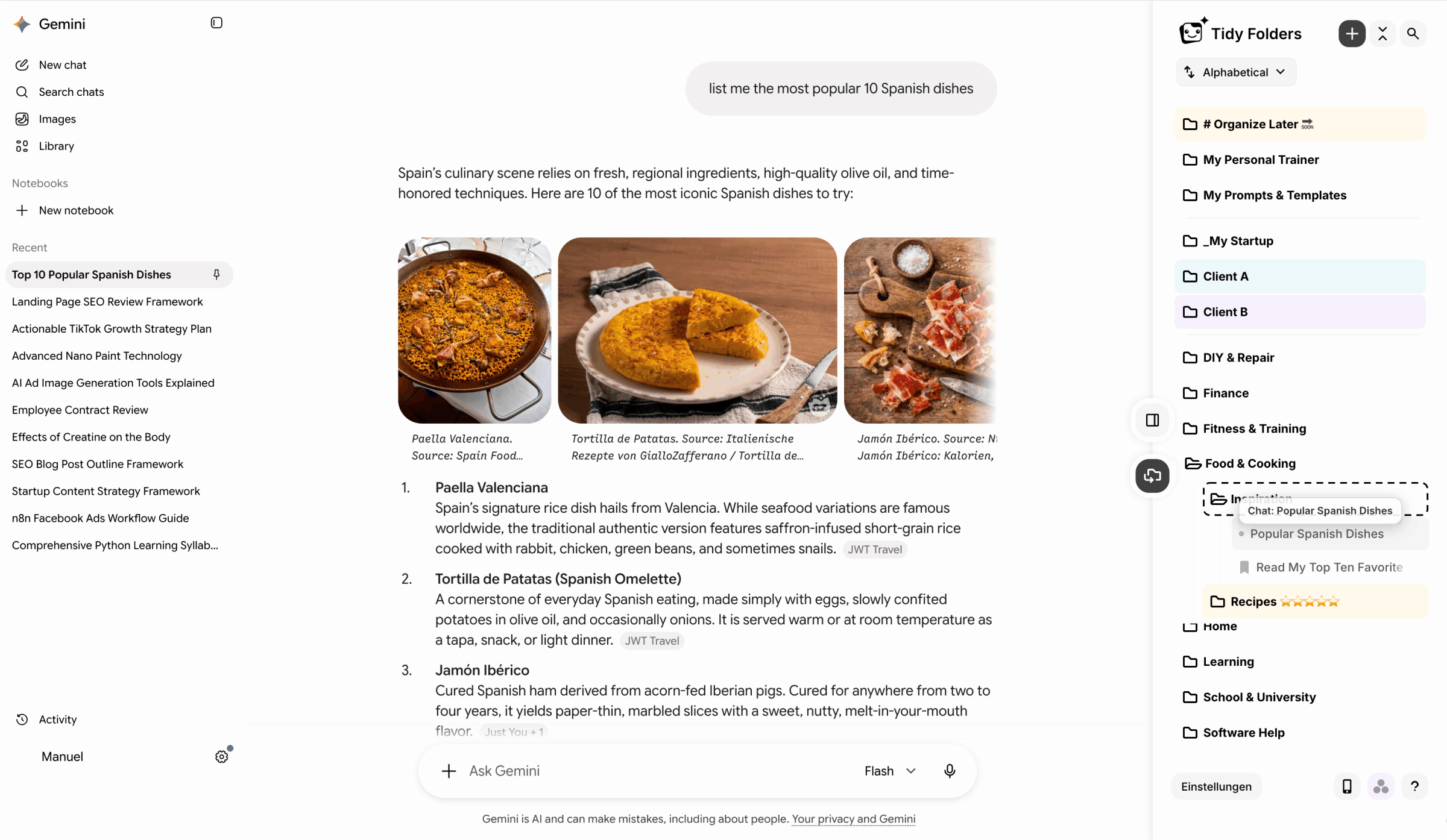
Tidy Folders changes the interface itself instead of your habits. Install it, open gemini.google.com, and a folder panel appears next to your chats. From there:
- Create folders and subfolders for trips, clients, projects or life areas, and drag conversations in from your existing history.
- Add colors and dividers so the folders you open daily stand out from the ones you rarely touch.
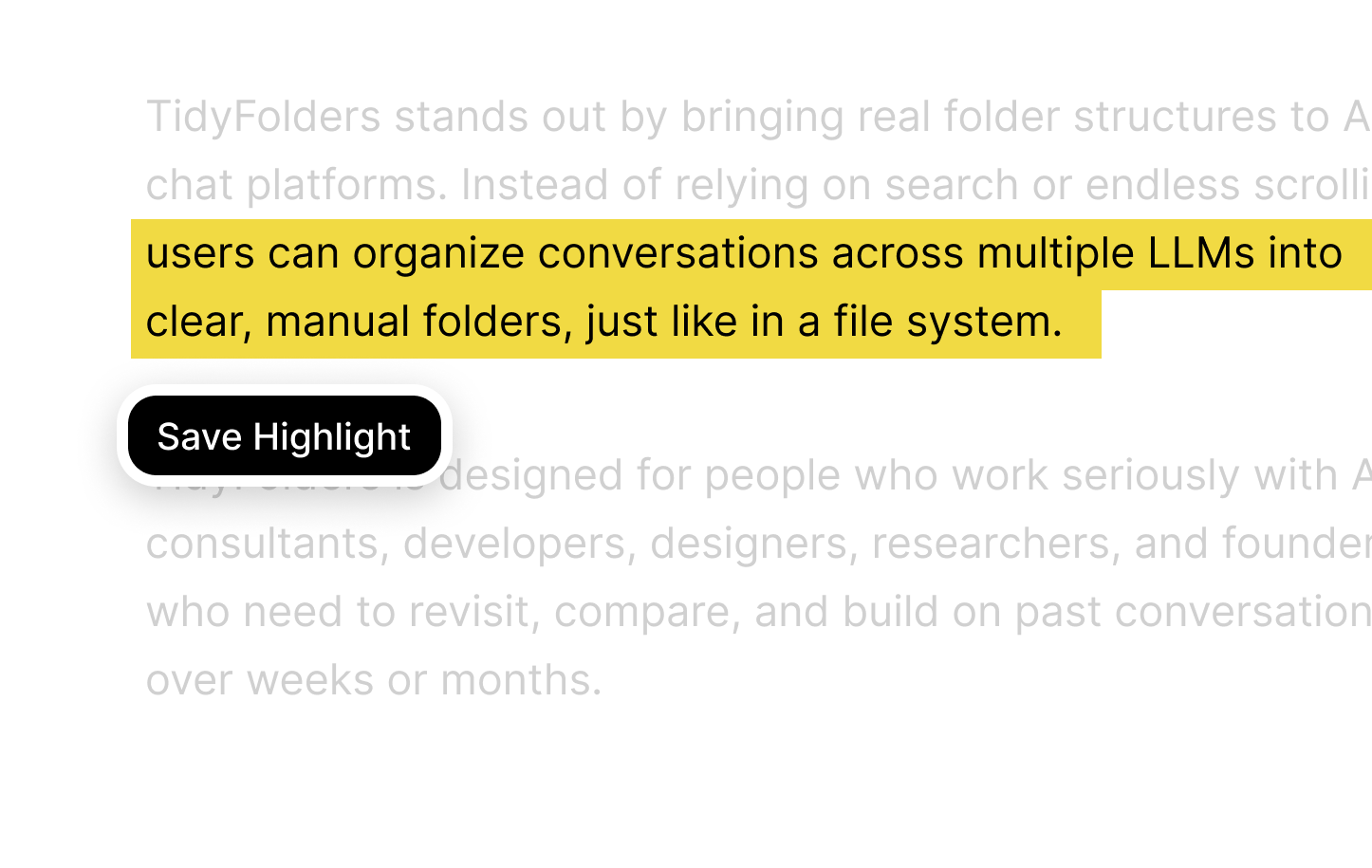
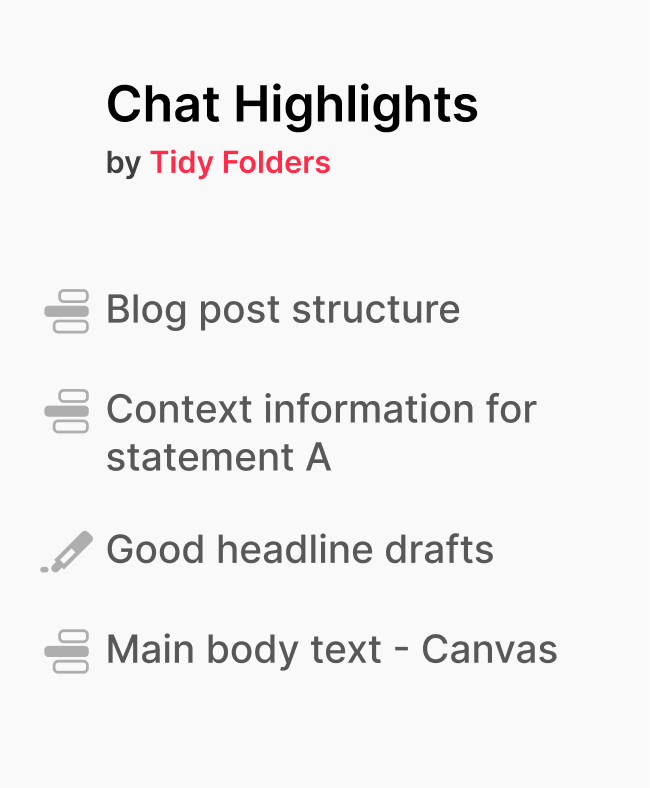
- Highlight the passages that matter. Each highlight is saved as a jump link that reopens the chat at that exact sentence.
- Keep using pins and Gems. Tidy sits alongside every native feature; nothing gets replaced or blocked.
Setup is a single install, and the extension is free.
Text highlighting: jump back to the exact answer
A flat chat list makes you search twice. First for the right conversation, then for the right answer inside it, buried somewhere in 80 messages.
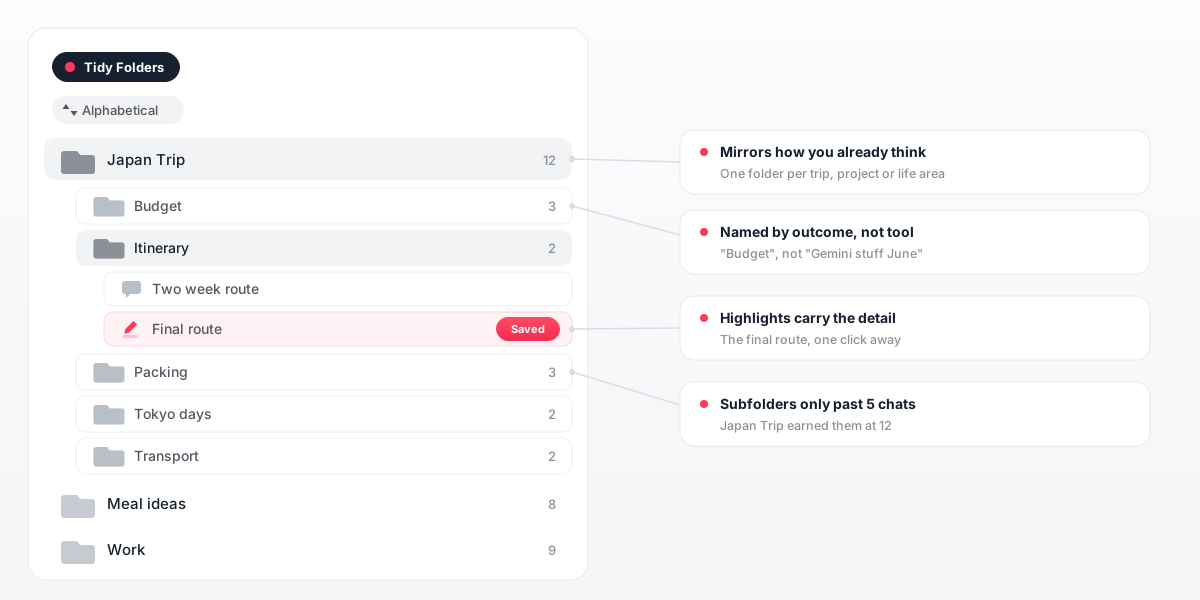
Gemini folders end the first search: the chat about the route lives in Japan Trip, then Itinerary, and opening it takes two clicks whether it is from yesterday or from February.
Text highlighting ends the second. While reading an answer worth keeping, mark the decisive passage like you would on paper. Later, one click on the saved highlight reopens the chat exactly there. No scrolling on either end.
A Gemini folders setup that holds up: 4 rules
Structure fails when it demands discipline. These four rules keep it nearly effortless:
- Copy your life, not a system. If your weeks revolve around a trip, two clients and the household, those are your folders. Never build a taxonomy you have to memorize.
- Stay flat at first. Top-level folders are enough on day one. A subfolder is earned once a folder grows past roughly 5 chats.
- Name folders by outcome. "Budget" and "Itinerary" age well. "Gemini stuff June" does not.
- Let highlights do the remembering. The folder finds the chat, the highlight finds the sentence. The combination is what makes the structure fast.
9 workflows that get easier with Gemini folders
No two histories are alike, but the same shapes come back again and again. Below are nine setups Gemini users build in practice, from travel plans to side projects. Expand the ones that sound like your own Recent list:
Trip planning: one folder per trip, subfolders per decision
A single trip spawns dozens of chats: routes, hotels, rail passes, restaurant shortlists. Give the trip its own folder with subfolders like Route, Bookings and Packing, and the whole plan lives in one place until departure. Highlight the final itinerary once, and you can reopen it at the airport without any scrolling.
Household and family: the small questions of every week
Family life feeds Gemini a steady stream of little problems, from school forms to birthday ideas to the washing machine error code. A Household folder with a handful of subfolders keeps those threads together instead of scattered through the Recent list. When the same question comes back next year, the old answer is already waiting.
Docs and Gmail: outlines, slides and tricky email replies
For many people Gemini works right next to Google Docs and Gmail, so chats about report outlines, slide structures and delicate email wording pile up fast. A Workspace folder, split by document or by recipient, keeps the history behind each draft findable. The highlight on the reply you actually sent becomes the template for the next one.
Learning and languages: one folder per subject
Grammar explanations, vocabulary drills and practice dialogues belong to a subject, not to a date. Filed by language or course, the folder slowly grows into a study guide you built without noticing. Each marked passage acts like a flashcard that reopens the full explanation behind it.
Recipes and meal prep: the dishes worth cooking twice
Gemini improvises a great dinner, and then the chat sinks under everything you asked afterwards. A Recipes folder, perhaps split into Weeknight and Meal prep, holds on to the keepers. Highlight the ingredient list and the next grocery run starts with a single click.
Career moves: a folder for each application
Tailoring a resume and cover letter with Gemini spreads one application across several conversations. A folder per company gathers the drafts, the practice interview questions and the research about the team in one spot. If a second interview arrives weeks later, you can reread exactly what you told them the first time.
Content ideas: brainstorms sorted by channel or series
Idea sessions are the chats you most want back and least often find, because their titles reveal nothing. Sorted into folders by channel, series or project, the spring brainstorm is still there when the calendar runs dry in autumn. A highlight on the one idea you shortlisted spares you rereading the other forty.
Shopping research: comparisons that outlive the purchase
Comparing laptops, vacuum cleaners or mattresses takes several chats of specs and follow-up questions. A Shopping folder keeps each comparison intact until you decide, and afterwards it remembers why you chose what you chose. A warranty question months later lands in the same place.
Personal finances: background research, kept in order
Chats that explain a tax form, untangle an insurance letter or translate the fine print of a bank statement are worth keeping around. A Finances folder holds that background research where you can check it again, separate from everything else. It stays exactly that, research to reread: the decisions remain yours, with a professional where it matters.
Nine different lists, one common thread: each folder copies a corner of a life that already exists, so filing a chat takes a second and finding it again takes two clicks. That is the entire trick, and it keeps working in weeks when discipline does not.
One system of Gemini folders across ChatGPT, Claude, DeepSeek and Grok
If Gemini is not your only assistant, the same flat-list problem is waiting in every other sidebar you use.
Tidy applies one structure to all of them: Gemini, ChatGPT, Claude, DeepSeek and Grok conversations can share a folder, so the research from one AI sits next to the draft from another. No single product's native features can offer that, because each one ends at its own walls. More at tidyfolders.com.
Gemini folders: FAQ
Does Google Gemini have folders?
No. Gemini has no folder system: you can pin, rename and delete chats, but there is no way to group them by topic. Real Gemini folders come from a browser extension such as Tidy Folders.
Are Gems the same as folders?
No. A Gem is a custom assistant with its own instructions, so it changes how Gemini answers. A folder is a place a conversation lives in so you can find it again. The two solve completely different problems.
Can I pin chats in Gemini?
Yes. Gemini lets you pin a chat so it stays at the top of the list. Pins work well for a handful of current conversations, but they cannot be grouped or nested, so a growing history still needs folders.
How do I organize my existing Gemini chats?
Install the free Tidy Folders extension and open gemini.google.com. Your history is already there, so you can create folders and drag past conversations into them right away. Nothing has to be started over.
Can I use the same folders for Gemini and ChatGPT?
Yes. Tidy runs one folder system across Gemini, ChatGPT, Claude, DeepSeek and Grok, so a single project folder can hold conversations from several AIs side by side.
Is Tidy Folders free?
Yes. Tidy Folders is free to install and use, and the folder system works right away.
How do I find old Gemini chats?
Without an extension you scroll the Recent list or try the search box. With Gemini folders from Tidy, a filed chat keeps a fixed place, and a saved highlight jumps you straight to the answer inside it.
Does Gemini save my chat history?
Yes, as long as the activity settings of your Google account allow it. Conversations are tied to that account, and each chat keeps a stable link you can return to later.
Can I delete Gemini chats?
Yes, every chat has a delete option in its menu. Deleting is permanent, though. Filing a conversation into a folder gets it out of the way without losing it.
Are Gemini folder extensions safe?
Before installing any extension, look at what it can read and store. Tidy Folders never reads or transmits your full conversations; it stores only the highlights you decide to save.